This assumes you are already configured the PayPal Python SDK, for example, in VSCode or on a Linux system. If not, check out my article FreeKB - PayPal - Checkout using PayPal-Python-Server-SDK.
I unfortunately had a scenario where a customer placed multiple orders due to the backend logic taking longer than expected to process. Fortunately, I was able to refund the customer. But this brought to light the need to do something when the PayPal backend takes a bit to complete. I found using the Font Awesome spinner a good option.
Let's say your Flask app has the following structure.
├── main.py
├── my-project (directory)
│   ├── __init__.py
│   ├── checkout.py
│   ├── paypal_backend.py
│   ├── javascript (directory)
│   │   ├── paypal_frontend.js
│   ├── templates (directory)
│   │   ├── checkout.html
In this example, checkout.py could contain a route for your checkout.html page.
from flask import Blueprint, render_template

blueprint = Blueprint('my_route', __name__)

@blueprint.route('/checkout')
def checkout():
    paypal_client_id="your PayPal Client ID"
    return render_template('checkout.html', paypal_client_id=paypal_client_id)
And your checkout.html page could have the following, which uses paypal_frontend.js to render your PayPal checkout form which includes additional markup to include the Font Awesome Spinner.
{% extends "base.html" %}
{% block content %}
<style>
.overlay {
display: none; /* Hide by default */
position: absolute;
top: 50%;
left: 50%;
transform: translate(-50%, -50%);
}
.overlay--visible {
display: flex; /* update display to flex to display the spinner - this will happen when the showSpinner function in paypal_frontend.py is called */
}
</style>
<link rel="stylesheet" href="https://cdnjs.cloudflare.com/ajax/libs/font-awesome/4.7.0/css/font-awesome.min.css">
<html>
<head></head>
<body>
<div id="paypal-button-container" class="paypal-button-container"></div>
<div id="paypal-spinner" class="overlay">
<div class="fa-5x">
<i class="fa fa-spinner fa-spin fa-2x"></i>
</div>
</div>
<p id="result-message"></p>
<script src="https://www.paypal.com/sdk/js?client-id={{paypal_client_id}}¤cy=USD&components=buttons"></script>
<script src="{{ url_for('static', filename='javascript/paypal_frontend.js') }}"></script>
</body>
</html>
And your paypal_frontend.js could have something like this. The important thing to notice here is that there is a function named showSpinner that will apply the .overlay--visible CSS class in checkout.html so that the Font Awesome spinner is displayed, and the showSpinner function is called when the submit button is clicked.
function showSpinner() {
    document.getElementById('paypal-spinner').classList.add('overlay--visible');
}

async function createOrderCallback() {
    try {
        var response = await fetch(`/paypal/order/create`, {method: "POST", headers: {"Content-Type": "application/json" })
    } catch (error) {
        return resultMessage({ result: "failed", message: `${error}` })
    }

    if ( response_json.result != "success" ) {
        return resultMessage({ result: "failed", message: `${JSON.stringify(response.json())}` })
    } else {
        return response_json.order_id
    }
}

async function onApproveCallback(order_id) {
    try {
        var response = await fetch(`/paypal/order/capture`, {method: "POST", headers: {"Content-Type": "application/json" }, body: JSON.stringify(order_id) })
    } catch (error) {
        return resultMessage({ result: "failed", message: `${error}` })
    }

    if ( response.json().status != "COMPLETED" ) {
        return resultMessage({ result: "failed", message: `${JSON.stringify(response.json())}` })
    } else {
        return resultMessage({ result: "sucesss" })
    }
}

function resultMessage(res) {
    document.location.replace(`/order?result=${res.result}`);
}

window.paypal.Buttons({createOrder: createOrderCallback, onApprove: onApproveCallback})
const cardField = window.paypal.CardFields({createOrder: createOrderCallback, onApprove: onApproveCallback})

if (cardField.isEligible()) {
    const nameField = cardField.NameField({placeholder:"Name on Card",}).render("#card-name-field-container")
    const numberField = cardField.NumberField({placeholder:"Card Number",       }).render("#card-number-field-container")
    const expiryField = cardField.ExpiryField({placeholder:"MM / YY (card expiration month/year)",      }).render("#card-expiry-field-container")
    const cvvField = cardField.CVVField({placeholder:"CVV (the 3 digit code on back of card)",      }).render("#card-cvv-field-container")

    document
        .getElementById("multi-card-field-button")
        .addEventListener("click", () => {

        	showSpinner()

            cardField.submit()
                 .then(() => {})
                 .catch((submit_error) => {
                    console.log(`[${new Date().toJSON()}] submit_error => ${JSON.stringify(submit_error)}`)
                    resultMessage({ result: "failed", message: `${JSON.stringify(submit_error)}` })
                })
        })
}
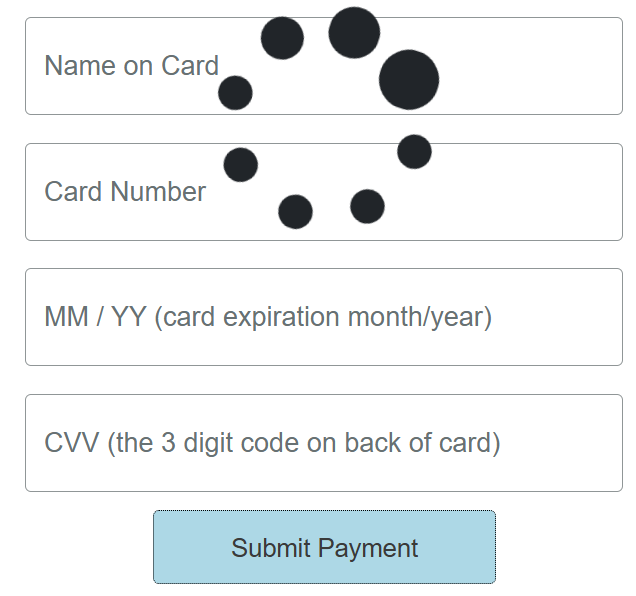
The spinner should display after clicking the submit button.
Did you find this article helpful?
If so, consider buying me a coffee over at